Author: H5 Automation

  • How to Turn Your eLearning Website Into an Interactive Learning Platform Using H5P

    How to Turn Your eLearning Website Into an Interactive Learning Platform Using H5P

    Modern learners expect more than plain text and static videos. If your eLearning website only delivers long lessons, PDFs, or passive video content, learners can quickly lose attention and motivation.

    The good news is that you can transform your online learning website into a highly interactive learning platform using H5P.

    Interactive learning improves engagement, increases course completion rates, and creates a much better learning experience for students. In this guide, you’ll learn how to make your eLearning website interactive with H5P and how automation can save hours of manual work.

    Why Interactive Learning Matters

    Traditional learning content often feels one-sided. Students simply read or watch without participating actively.

    Interactive learning changes that.

    Instead of passively consuming information, learners:

    • Answer quizzes
    • Interact with videos
    • Drag and drop elements
    • Complete interactive presentations
    • Practice with real-time feedback
    • Engage with gamified content

    This active participation improves:

    • Knowledge retention
    • Course engagement
    • Student motivation
    • Learning outcomes

    For course creators, it also helps increase the value of online courses and improve user satisfaction.


    What Is H5P?

    H5P is one of the most popular tools for creating interactive educational content on WordPress and LMS platforms.

    With H5P, you can create:

    • Interactive videos
    • Course presentations
    • Question sets
    • Drag-and-drop activities
    • Fill-in-the-blank exercises
    • Interactive quizzes
    • Flashcards
    • Timelines
    • Multimedia learning experiences

    It integrates with many popular LMS platforms and WordPress learning plugins.


    Best H5P Content Types for eLearning Websites

    Interactive Videos

    Interactive videos allow you to place quizzes, questions, and interactions directly inside videos.

    This keeps learners engaged instead of simply watching passively.

    You can:

    • Ask questions during lessons
    • Add clickable interactions
    • Track learner progress
    • Prevent skipping important sections

    Interactive videos are excellent for:

    • Online courses
    • Employee training
    • Tutorials
    • Educational platforms

    Course Presentations

    Course presentations combine slides, multimedia, and interactions into a single learning experience.

    Instead of static slides, you can add:

    • Quizzes
    • Images
    • Videos
    • Navigation controls
    • Interactive checkpoints

    This makes lessons much more engaging and professional.


    Question Sets and Quizzes

    Quizzes improve retention by encouraging active recall.

    With H5P, you can build:

    • Multiple choice questions
    • True/false quizzes
    • Fill in the blanks
    • Drag text activities
    • Match-the-following exercises

    These are ideal for:

    • Knowledge testing
    • Certification programs
    • Student assessments
    • Practice exercises

    The Biggest Problem: Manual H5P Content Creation

    While H5P is powerful, manually creating interactive content can become extremely time-consuming.

    For example, creating:

    • 100 quiz questions
    • Multiple interactive videos
    • Large course presentations
    • Bulk educational content

    can take hours or even days.

    You often need to:

    1. Create content manually
    2. Add interactions one by one
    3. Configure settings repeatedly
    4. Upload media individually
    5. Test everything manually

    This repetitive workflow slows down course creators significantly.


    Automate H5P Content Creation and Save Hours

    This is where H5 Automation can help.

    Instead of manually creating each H5P content item, you can automate the process using structured JSON files and bulk import H5P content within seconds.

    With H5 Automation, you can:

    • Bulk import H5P content
    • Automate question set creation
    • Generate interactive videos faster
    • Create course presentations in bulk
    • Save hours of repetitive work
    • Scale your eLearning platform efficiently

    This is especially useful for:

    • LMS websites
    • Online academies
    • Educational institutions
    • Course creators
    • Training businesses

    How Interactive Content Helps Grow Your eLearning Business

    Interactive learning content is not just about engagement. It also improves the overall quality and competitiveness of your platform.

    Benefits include:

    • Higher student engagement
    • Better course completion rates
    • Increased learner satisfaction
    • More professional learning experiences
    • Better retention and repeat customers
    • Improved course value

    If your competitors only provide static lessons, interactive learning can become your biggest advantage.


    Final Thoughts

    Creating an interactive eLearning website is no longer optional. Modern learners expect engaging and dynamic learning experiences.

    Using H5P, you can transform boring lessons into interactive educational experiences that improve learning outcomes and keep students engaged.

    And if manual content creation is slowing you down, tools like H5 Automation can help you automate H5P content creation, bulk import interactive content, and scale your learning platform much faster.

    The future of online education is interactive. The earlier you adopt it, the stronger your platform can become.
  • Bulk import H5P crossword content

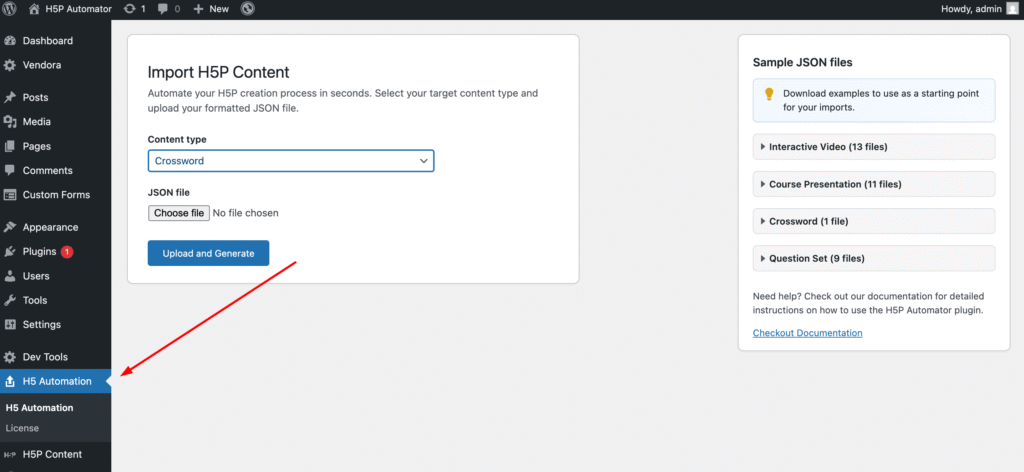
    Before you begin, check the Getting Started section if you haven’t already. Let’s see how to bulk import multiple crossword contents in seconds. Check out the H5P Crossword content to know how it works. To automate the content creation, all you need is a JSON file. Download the sample crossword JSON file. Now, go to the WordPress admin side and click on the H5 Automation menu.

    Select “Crossword” from the Content Type dropdown, choose the downloaded JSON file, and click the upload and generate button. And you are done with the crossword content creation.

  • Bulk import H5P question set

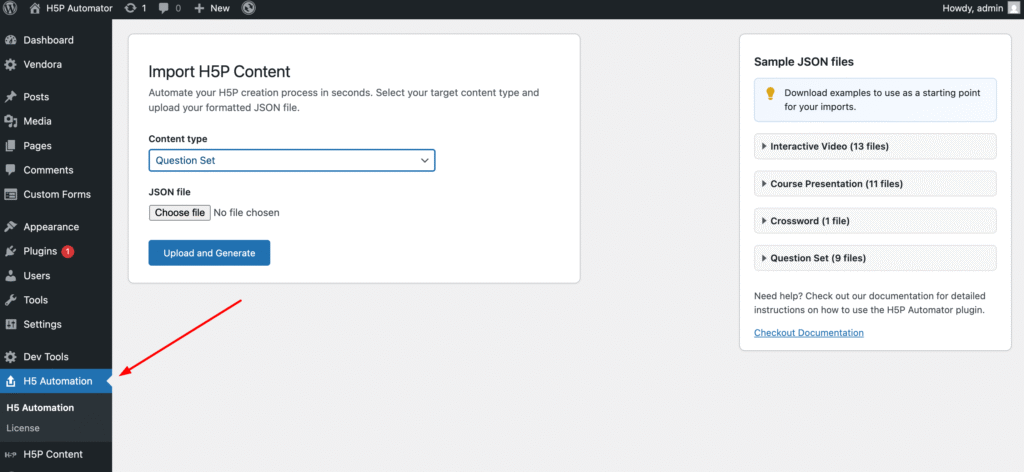
    Before you begin, check the Getting Started section if you haven‘t already. Let’s see how to automate multiple interactive video creations in seconds. If you want to know details about how the question set works, refer to this link: H5P Question Set. To automate the content creation, all you need is a JSON file. Download the sample quiz-question-set JSON file. Now, go to the WordPress admin side and click on the H5 Automation menu.

    Select “Question Set” from the Content Types dropdown, choose the downloaded JSON file, and click the upload and generate button. And you are done with the quiz question set content creation.

    Understand the JSON file

  • Bulk import H5P interactive video content

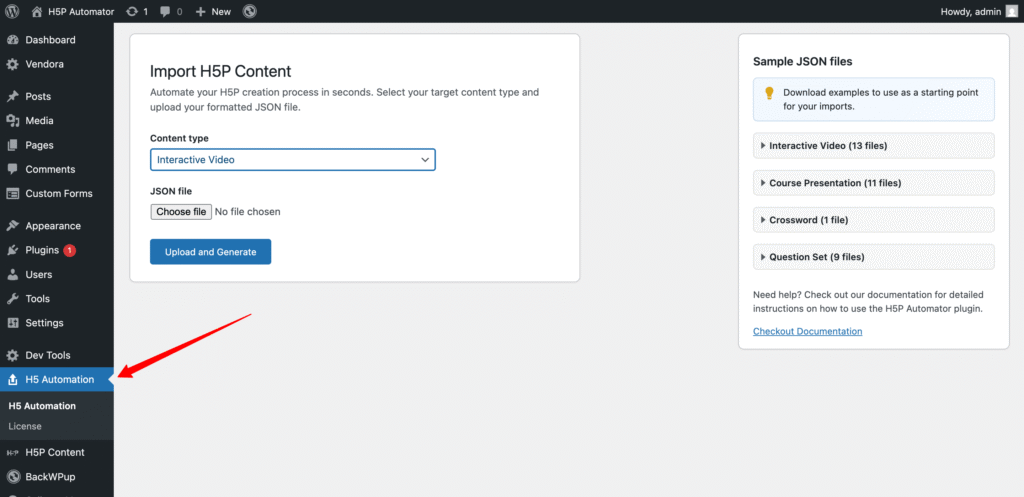
    Before you begin, first check the Getting Started section if you didn’t. Let’s see how to automate multiple interactive video creations in seconds. If you want to know details about how H5P Interactive video works, refer to this link. To automate the content creation, all you need is a JSON file. Download the sample interactive-video-content JSON file. Now, go to the WordPress admin side and click on the H5 Automation menu.

    Select “Interactive Video” from the Content Types dropdown, choose the downloaded JSON file, and click the upload and generate button. And you are done with the interactive video content creation.

    Understand the JSON video. Download the JSON file and open it on a text editor. In the JSON file, there may seem to be a lot of code script, but we only need to know and modify some things. These are:

    The JSON structure:

    [
      {},
      {}
    ]

    The JSON file started & ended with a square bracket. Inside the square brackets, each curly brace means an interactive video. Here, two pairs of curly braces mean 2 interactive videos. Inside the curly braces, we add the contents.

    Inside the {} curly braces, there is an interactiveVideo block with the following structure:

    [
        {
           "interactiveVideo": {
               "title": "title",
               "video": {},
               "assets": {},
               "summary": {},
            },
            "override": {},
            "l10n": {}
        }
    ]

    Title:

    The title is an identifier of this video content. A human-readable text.

    Video:

    {
        "startScreenOptions": {
            "title": "Interactive Video",
            "hideStartTitle": false
        },
        "textTracks": {
            "videoTrack": [
                {
                    "label": "Subtitles",
                    "kind": "subtitles",
                    "srcLang": "en"
                }
            ]
        },
        "files": [
            {
                "path": "https://www.youtube.com/watch?v=d95PPykB2vE",
                "mime": "video\/YouTube",
                "copyright": {
                    "license": "U"
                },
                "aspectRatio": "16:9"
            }
        ]
    },

    startScreenOptions, you can leave it or modify the title if you want. The important part is “files”, here you need to add the URL of you video. You can add URLs from YouTube/Vimeo. Leave the rest of it.

    Assets:

    {
        "interactions": [],
        "bookmarks": [],
        "endscreens": [
            {
                "time": 28,
                "label": "1:22 Submit screen"
            }
        ]
    }

    The “interactives” property contains interactions like single choice, fill in the blank, drag & drop, etc. The “endscreens”, add the time in seconds & label for the endscreen. The time is in seconds. Here 28 means the end screen will appear on the 28th second of this video.

    Summary Block:

    {
    "task": {
        "library": "H5P.Summary",
        "params": {
            "intro": "Choose the correct statement.",
            "summaries": [
                {
                    "subContentId": "4f14d7f4-0ffb-4454-a76f-5cd23b3e0a2c",
                    "tip": ""
                }
            ],
            "overallFeedback": [
                {
                    "from": 0,
                    "to": 40
                }
            ],
            "solvedLabel": "Progress:",
            "scoreLabel": "Wrong answers:",
            "resultLabel": "Your result",
            "labelCorrect": "Correct.",
            "labelIncorrect": "Incorrect! Please try again.",
            "alternativeIncorrectLabel": "Incorrect",
            "labelCorrectAnswers": "Correct answers.",
            "tipButtonLabel": "Show tip",
            "scoreBarLabel": "You got :num out of :total points",
            "progressText": "Progress :num of :total"
        },
        "subContentId": "982617fb-5857-45ff-a00b-033a67c63d76",
        "metadata": {
            "contentType": "Summary",
            "license": "U",
            "title": "Untitled Summary",
            "authors": [],
            "changes": [],
            "extraTitle": "Untitled Summary"
        }
    },
    "displayAt": 3
    }

    Configure the summary block if you want to change the text. For example: “solvedLabel”: “Progress:”, if you want to change the text ” Progress ” to your progress or something else, you can do it; otherwise, you can leave it. The “overallFeedback” is the feedback system. If you want to provide grading as per the score, then configure it like below. If you want don’t want to add grading, leave it.

       "overallFeedback": [
                {
                    "from": 0,
                    "to": 39,
                    "feedback": "F"
                },
                {
                    "from": 40,
                    "to": 79,
                    "feedback": "B"
                },
                {
                    "from": 80,
                    "to": 100,
                    "feedback": "A"
                },
            ],

    Override:

            "override": {
                "autoplay": false,
                "loop": false,
                "showBookmarksmenuOnLoad": false,
                "showRewind10": false,
                "preventSkippingMode": "none",
                "deactivateSound": false
            },

    Override is to control the H5P behaviour settings. For example, if you want to play the video automatically then set “autoplay”: true.

    l10n:

    {
                "interaction": "Interaction",
                "play": "Play",
                "pause": "Pause",
                "mute": "Mute, currently unmuted",
                "unmute": "Unmute, currently muted",
                "quality": "Video Quality",
                "captions": "Captions",
                "close": "Close",
                "fullscreen": "Fullscreen",
                "exitFullscreen": "Exit Fullscreen",
                "summary": "Open summary dialog",
                "bookmarks": "Bookmarks",
                "endscreen": "Submit screen",
                "defaultAdaptivitySeekLabel": "Continue",
                "continueWithVideo": "Continue with video",
                "more": "More player options",
                "playbackRate": "Playback Rate",
                "rewind10": "Rewind 10 Seconds",
                "navDisabled": "Navigation is disabled",
                "navForwardDisabled": "Navigating forward is disabled",
                "sndDisabled": "Sound is disabled",
                "requiresCompletionWarning": "You need to answer all the questions correctly before continuing.",
                "back": "Back",
                "hours": "Hours",
                "minutes": "Minutes",
                "seconds": "Seconds",
                "currentTime": "Current time:",
                "totalTime": "Total time:",
                "singleInteractionAnnouncement": "Interaction appeared:",
                "multipleInteractionsAnnouncement": "Multiple interactions appeared.",
                "videoPausedAnnouncement": "Video is paused",
                "content": "Content",
                "answered": "@answered answered",
                "endcardTitle": "@answered Question(s) answered",
                "endcardInformation": "You have answered @answered questions, click below to submit your answers.",
                "endcardInformationOnSubmitButtonDisabled": "You have answered @answered questions.",
                "endcardInformationNoAnswers": "You have not answered any questions.",
                "endcardInformationMustHaveAnswer": "You have to answer at least one question before you can submit your answers.",
                "endcardSubmitButton": "Submit Answers",
                "endcardSubmitMessage": "Your answers have been submitted!",
                "endcardTableRowScore": "Score",
                "endcardQuestion": "Question",
                "endcardAnsweredScore": "answered",
                "endCardTableRowSummaryWithScore": "You got @score out of @total points for the @question that appeared after @minutes minutes and @seconds seconds.",
                "endCardTableRowSummaryWithoutScore": "You have answered the @question that appeared after @minutes minutes and @seconds seconds.",
                "videoProgressBar": "Video progress",
                "howToCreateInteractions": "Play the video to start creating interactions"
            }

    This section is to customise the text if you want, but don’t translate the text here otherwise the default translation will not work. For example: “play”: “Play”, if you want to change the text from “Play” to “Play the video” you can do it, otherwise you don’t need to touch this section at all.

    Let’s see the detailed process in the following video:

  • Bulk import H5P course presentation

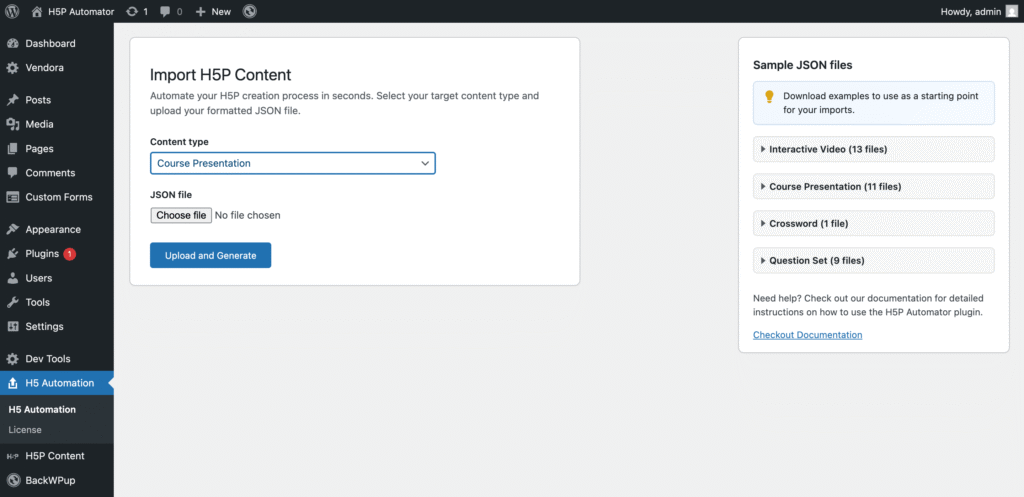
    Before you begin, first check the Getting Started section if you did not yet. Let’s see how to automate H5P course presentation content creation. If you want to know details about how the H5P Course Presentation works, refer to this link. To automate or bulk import the content, all you need is a JSON file. Download the sample interactive-course-presentation JSON file. Now, go to the WordPress admin side and click on the H5 Automation menu.

    h5p-course-presentation-bulk-import

    Select “Course Presentation” from the Content Types dropdown, choose the downloaded JSON file, and click the upload and generate button. And you are done with the course presentation content creation.

    See the detailed explanation in the following video: